I love Scrivener. It’s got so many awesome awesome features. But one thing about it makes me want to go on a crazed, Sweeny Todd style hacking spree. The fact that the default font is Courier New. :shudder: I despise Courier New. I believe it should be stricken from fonts everywhere (sadly you can’t delete it from your machine as it is considered a system font).
I have spent HOURS searching for information on how to change this, poring over the Scrivener manual, asking @ScrivenerApp, googling, to no avail. I’d been resorting to changing everything scene by scene, which is an understandable pain in the patootie.
But I finally figured it out on my own.
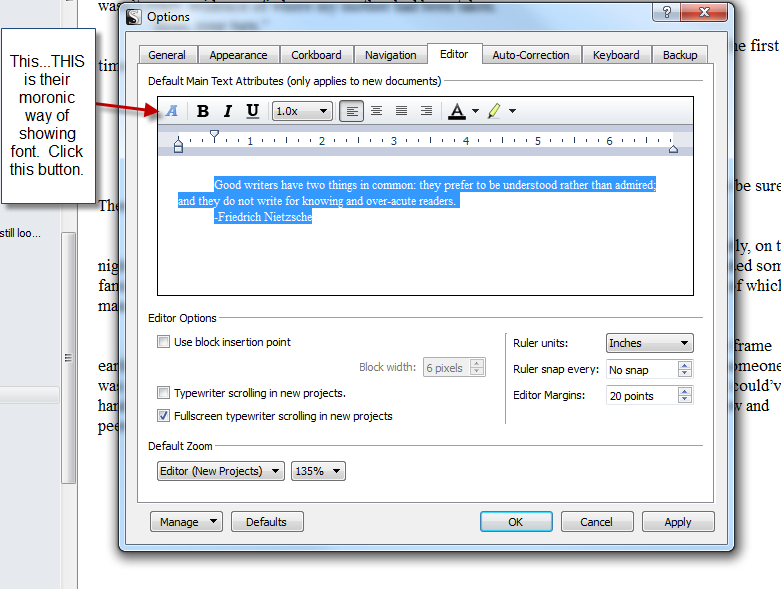
So I wanted to share here with nice easily searchable terms and a title and SCREENSHOTS because this is not remotely OBVIOUS. First you must go to TOOLS–>Options–>Editor. That will get you to this window. Now see that little random italicized A? Yeah, that’s the button. That’s what they use as their symbol for font. WHY they can’t have a dropdown menu for font like EVERYBODY ELSE, I don’t know.
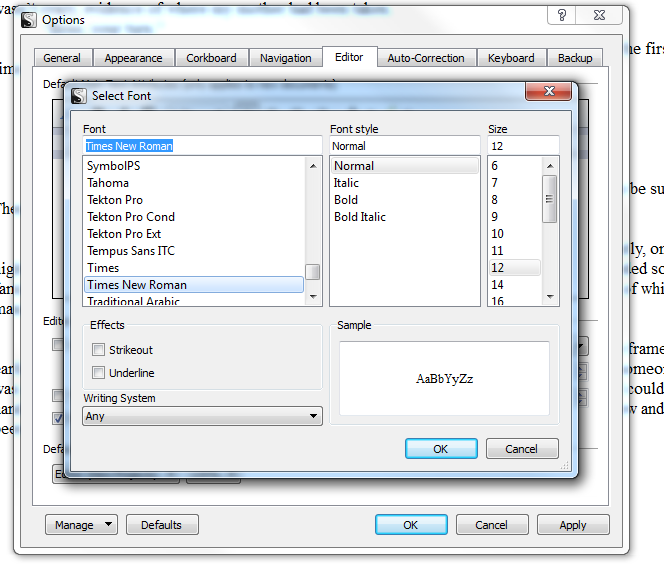
So click the button. That takes you here. Now that’s perfectly reasonable looking isn’t it? Pick your preferred font.
Now this will only affect NEW stuff. If you want to change the default on old stuff (like, say, all the scenes you laid out for the ENTIRE SECOND HALF of your book the other day) you need to select all of the scenes you want to change and then go here.
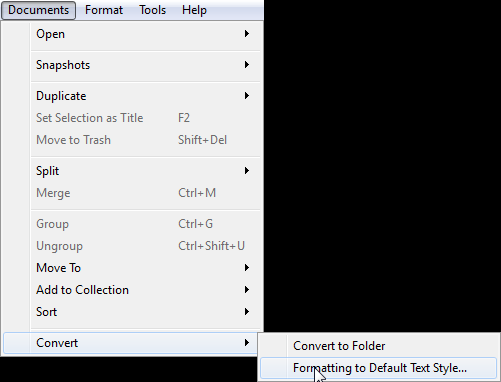
That takes you to this window.
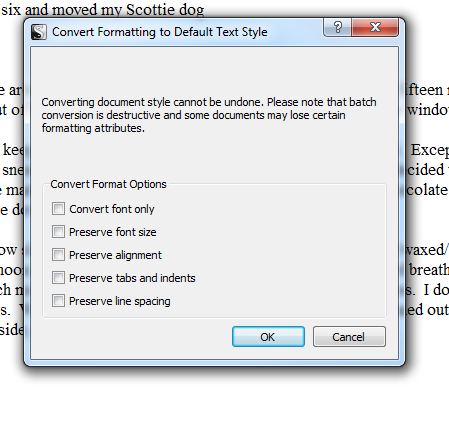
At this point you decide what all you want to change. In my case, I just converted font only because everything that I was changing was a new scene. It is my understanding that if you are to run this feature on existing scenes (or other documents), it will preserve font size, alignment, tabs and indents, spacing BUT NOT ANY ITALICS OR OTHER FONT FORMATTING. So use on existing stuff at your peril.
In any event, this is how you change the Editor font in Scrivener to something that makes you less stabbity.
170 thoughts on “How To Change The Editor Font In Scrivener For Windows”
Ooh, I wish you had Scrivener for Mac! The default font for it is Optima, and it’s annoying. I will have to follow your research and see if I can figure it out.
I just tried on Mac and it’s exactly the same as explained.
BTW: Thanks a lot for this article, soooo helpful!!!
The process is similar in Scrivener for Mac. (Actually, that “A” looks kinda like a standard “Font” button in some programs I’m familiar with.)
…I happen to like Courier New and Optima. Granted, I also am one of the few who likes Times New Roman and (size 11) Verdana and who hates Arial and Helvitica, so I’m odd.
This whole trend toward icons only with no words drives me batshit crazy. I don’t WANT pictures. I want WORDS damn it! I want my nice pretty drop down menu! They say that the icons are supposed to save time, but it doesn’t for me. It takes me twice as long to figure out what button to click because there’s no word!
Does no word show up if you hold your mouse pointer over the icon? Descriptors pop up for me—but again, I’m on a Mac. :/
Apparently it does if you hold it there for a really really long time. I still say just have a drop down box.
I so totally agree with you Kait!!!
Thanks, Kait! I just downloaded Scrivener and I’m sure I’ll need this. I have a lot of learning to do.
Don’t forget to back up your document BEFORE you make a big change like the one you described.
I agree with your rant about icons. What’s obvious to one person may not be obvious to the next. I’ve been known to walk into the wrong restroom when someone used something offbeat to designate which was which.
I actually found that in Scrivener, but I think I found it totally by accident and thought “That’s what Kait was talking about when we were on our trip!” Then I forgot to tell you. *looks sheepish*
Some of the games on my iPad have icons instead of words, and it takes me forever to figure out what they mean sometimes. How hard would it be to include both the icon and the words?
THANK YOU!! This has been driving me INSANE!
Thanks Kait, I spent 30 minutes trying to change the default font then decided to search for a solution instead.
The guy who designed the options ui is a moron.
Awesome! Thanks so much for your sweat and sacrifice on our behalf 😀
LIKE +1 thanks!! I’ve had Scriv for Windows for a bit but just now getting into more of the special features.
Hello Kait,
Felt like I helped you as best I could within the word limitation bounds of Twitter:
You: “How do you permanently change the Editor font for all docs in Scrivener for Windows?”
ScrivenerApp: “Hello Kait. You can go to Tools > Options… > Editor to change the default font used for…”
“… documents. And then use Documents > Convert > Formatting to Default Text Style to change offending docs. :-)”
You: “FYI, the really important part you’re leaving out is that it’s that random little “A” that gets you to FONT.”
“We Windows folks expect a nice drop down box.”
ScrivenerApp: “Glad you sussed it Kait! Coded from the ground up according to Windows standards by the way. 🙂 All the best, DJ.”
The tool tip ‘Show Fonts’ appears as soon as you hover over the problematic “A”. This is all naturally covered in our Scrivener Manual on page 214. Font formatting *is* conserved for any binder documents that you decide to convert to your new font settings. We obviously wouldn’t want new font settings to automatically alter anything you had already written in order to prevent the overwriting of documents with a specific layout.
Glad to hear that you love other aspects of Scrivener, and thank you for spreading news regarding how to change the default editor font.
All the best, David
Scrivener, Literature & Latte
I think it’s just one of those things where when you know what it actually is, it seems totally obvious and you don’t think to mention it. I have this happen all the time with stuff I’m familiar with. And perhaps I misread the bit about the formatting in the manual. I thought it said somewhere something was going to be blitzed. Might’ve been an older version tutorial I was reading online somewhere. I did actually read the bit in the manual on 214 but it still was not obvious to me, as I could not figure out to what the manual was referring once I got to the relevant screen. So I wanted to make something with nice easy screenshots that would show up in a google search for those of us who were having blond moments.
It *is* a really helpful and appreciated Scrivener related blog post! Thank you Kait. 🙂
Ok I feel REEEEEEEEALLY stupid after going back for the FIFTH time to look at that page in the manual and it’s like right there… :DOH!: The A blended in with the line of the B and the i and the U. >.> That’s my story and I’m sticking to it…
Thank you. You have no idea how much time I’ve wasted trying to figure this out. Also, I agree that Courier New is horrible.
Thank you so much for this! And for having nice, google-friendly, search words. That’s how I found it and it just made my life oh, so much easier!
I was able to find the option shown above. However, it doesn’t let me change anything within that box other than the line spacing. The buttons highlight when I move the cursor over them, but when I click nothing happens.
Don’t know what to tell you. Clicking on the “A” button should bring up another box with fonts.
THANK YOU, THANK YOU, THANK YOU. You have just saved me hours of work.
Can I just beat Ellie by saying one thousand thank you’s. This has been a complete pain! Working between Linux and Windows machines and using Dropbox to sync there have been other issues to worry about and this is one that has been the proverbial burr under my personal creative saddle!!
One more, 1001 and thanks you’s…
Many thanks. I could not find out how to do this but thanks to Google (to find this page of yours) and to you I now know how.
You rock! I love Scrivener but it’s not always obvious how to use it! THANK YOU!
i just downloaded scrivener onto my new laptop for a novel i’m going to write overseas and without this bit of advice i would have shot blanks instead of explosions of genius each paragraph because courier new doesn’t inspire in the least, so thanks much!
Thanks so much for figuring this out. This was going to drive me crazy! Otherwise, love Scrivener.
Thank you sooooooo much! You have saved me from so much grief! I have also found Scrivener to be REALLY helpful, but the font WAS such an eyesore… until now! 😀
Thank you! I was pulling my hair out trying to get rid of courier new, too.
THANK YOU SO MUCH! I googled how I could do this, and your post was the only one that knew how! THANK YOU THANK YOU THANK YOU
Adding to the slew of thank yous. I found your post while googling a way to change this. You saved me at least two days of fruitless frustration.
You have saved me from a lifetime of stabbing myself in the eye! THANK YOU! I’ve been trying to figure out how to do this for some time now.
I thought I remembered how to do this before, but that was three computer/operating system wipes ago, so glad I found this! Even when I changed the font for a single document in Scrivener, Courier New would occasionally creep back in, especially if I’m moving text from one document to another. Going to pass this on to my friends who are also using Scrivener!
THANK YOU!!! Why they couldn’t bother to put it were you can change the font on EVERYTHING ELSE in the program I have NO idea. THANK YOU for saving me more time. I wish I’d googled before messing with this stupid thing for half an hour!
LOL Back to WRITING! 🙂
Wow … MANY thanks for this. As great as Scrivener is, some things are so convoluted, it makes you think it was a government committee creation.
So here’s another question – how do you get it to print page numbers and a header for specific sections? There are just specific texts that I’d like to print, and have a text (specific text) name + page # on top – just like you might do with a specific Word doc.
Anyway, THANKS!
~Doug
That, I have no idea…
Thanks so much for this. I’ve only just downloaded Scrivener and I share your hatred of Courier New. It’s just…ugly. I wish Scrivener were more user-friendly from the outset. I work in the video games industry and consider myself quite tech savvy so I rather naively thought using Scrivener would be straightforward. I *really* hate reading manuals and try to avoid it as much as possible. Hence, I’d hoped that Scrivener would be intuitive and I could just figure things out as I went along, yet I fell at the first hurdle. I’m starting to think that it might be a long time before I can get to the part where I can do some actual writing, lol.
Thanks – this was driving me nuts too …
I love you!!! Thank you so much for leaving this here for me to find it in Jan of 2013! I even have Scrivener for Dummies and could not figure this out. Your instructions are concise and helped me so much. I can’t stand working in anything but Times New Roman. WOOT! You made my day!!
Hello Kait. I was wondering if you know or if anyone has come across a way to add new fonts to those in Scrivener’s default list. I’d like to type in the editor using an old typewriter font. Any ideas?
No idea. Courier New pretty well is the normal computer version of an old typewriter font.
Ok, well thanks for getting back to me. Maybe I’ll check with Scrivener programmers. Have a great one.
Hello Dan. You can add fonts to Scrivener by adding them to your underlying operating system. This is fairly straightforward using OS X, and I’d presume Windows doesn’t make adding fonts too complex either. This video http://www.youtube.com/watch?v=3AIR7_ch9No (chosen at random), shows you how simple the process is. I hope that helps.
All the best, David
Scrivener, Literature & Latte
Thanks David! I’m on it. Now if I can just find a typewriter sound effect to match the font when I type it…
Thanks for this tip as I was getting frustrated trying to figure out how to change the default without it reverting back with every new note. Thanks again!
I love you so much right now lol thank you!
You’ve made my day – the next thing I have to figure out is how to subscribe to you blog – thanks from an old redneck.
Thanks Kait – default font problem solved. In the bad old days it used to be – find problem, wrestle with problem, solve problem. Now it’s more like – find problem, google problem, find someone who’d actually done the work to solve problem (YOU!), steal solution. I can’t decide if this is a good thing or if it’s slowly destroying my work ethic … Nice blog.
I was going for exactly this–I couldn’t figure out why I could change every font BUT the default writing font!! I like Calibri as it’s easy on my eyes, and I have been changing every single document one at a time. UNTIL NOW! 😀 Thank you!!
Thank you SO MUCH! I just figured out how to change all the files in your binder at once:
If you select all of the files in the binder like you would in a regular windows folder (click the top one, hold down shift, click the last one and they all become highlighted), you can then reformat all the files at once the same way you described. I’m running 1.0.2. Sorry if this has been posted already. I did a quick scan of the comments so I may have missed it.
Thanks for this! I just spent about a half hour fiddling with every other font setting in the program after my recent reinstall and I couldn’t remember how to find the only one I was looking for. The sad part is that I’m sure that if I ever need another font change I’ll end up googling for this post again, because I can’t think of any scenario where I’d interpret a pale blue “A” as signifier for font options.
Down with pictoral menus, I say! 😀
You save my life. Been searching for this. Copy paste from web, and font is hard to change. Your suggestion help me out. thanks
Thank you! I stared at that very screen, sure that font was there SOMEWHERE.
Thank You! Thank You! Thank You! Thank You! I will now put down the dull spoon with which I was about to dig my own eyes out. Courier is from hell, which is why the publishing industry insists upon it for all their manuscripts. 🙂
You are a rockstar! I just started using Scrivener and this is the first thing I wanted to customize about it. HATE courier font. If I wanted a typewriter I wouldn’t be writing on my computer.. I tried figuring this out on my own and you just saved me a bunch of frustration and time. Thanks!
Thank you kindly.
Bless you. I just spent an entire day yesterday trying to figure out that crap. You saved me another day.
Okay, I know you posted this a really long time ago, but I wanted to say thank you. I’ve spent the last hour trying to figure out how to change the default font. This was exactly what I needed. Thank you so much!
Hey!! Thank you SO much. It was driving me nuts. I really appreciate your help.
You’re a genius. This post was the first Google result for ‘scrivener courier new default’. Thank you.
I’ve been going through another battle round with Scrivener fonts. I’ve finally got it all to appear on the screen as Calibri. But still PRINTS as that stupid Courier font. I cannot find a place to change that font.
I sure wish they had a single button feature where you could have it do “All Calibri All The Time On All Screens And On All Printers” (or whatever other font you wanted to use.
Anyway, do you know how to have it PRINT your desired font?
It amazes me how such a great program can have some of these wonky things going on.
No idea. I have never printed directly from Scrivener. I always compile into a Word doc if I’m printing (because I usually need a Word doc for other things).
Great idea! Then just do Cntrl + A, switch it all to the desired and font, then print. Thanks. 😉
Hello Doug. You should be able to prevent anything “wonky going on” by using the features available to you within compile. This video should help you control your output from Scrivener much beyond merely ensuring that your font type is as desired http://www.youtube.com/watch?v=bwlCnRBJR0k. I hope that helps somewhat.
All the best, David
Scrivener, Literature & Latte
Dave … I’m watching that video. I gotta tell ya, there’s a “feature request” out of this, and it’s similar to what I experience with my video camera.
There is “manual mode” which lets me choose aperture and a whole slough of other stuff. And then there’s my favorite – the BIG EASY button. Press “Big Easy” and it covers 95% of my shooting.
It’d be great to see something similar in Scrivener.
Right now I’m using it to put together my business plan. It’s awesome being able to create sections, add pages, move ’em around, etc.
All I want to do is be able to print out the whole doc in one “big easy” process. If it’s possible to create something like that within Scrivener, I’m sure you’d find some (even more) happy fans.
😉
~Doug
Hello Doug,
If you just want to get your text out exactly as it was input, without Scrivener changing the formatting or adding anything, simply choose “Original” from the “Format As:” menu. This will output the manuscript exactly as you entered it. You could combine this with Kait’s advice, simply using the “Original” setting, compiling, and then opening your output in Word, or wherever, to tweak it as you wish. So, our BIG EASY button is “Original”, but we’ve made the compilation process as versatile as possible, which means there are going to be plenty of options if you want to put your head under the hood! 😉
Cheers, David
Thanks for this, David. I never knew this (and have always been happy using your super compile options).
Cheers, Alan
Hey while we’re at it David, is there a tutorial somewhere that explains what all the title levels and such are in compile? I never QUITE get things right when I compile and end up having to go in and change them all by hand in whatever I compiled them into.
Hello Kait,
If you watch the rather lengthy 18 minute video tutorial I referenced previously , you’ll see that it covers compilation levels. This shorter video http://www.youtube.com/watch?v=pN38dfz0LWc should also help get the theory of compilation levels across. The latest beta iteration of our Mac version highlights the binder documents that are being affected as you manipulate compilation options. This feature will be rolled out with our next version release, as we’re aware that compilation is still confusing for some users, 😉
All the best, David
Oh my gosh! I can’t thank you enough! I’ve been trying to figure this out forever! You’re my hero 🙂
Thanks for this Kait. This was driving me crazy too. Your instructions work for Scrivener for Mac just fine. I can get on with the book now!
Thanks for this!
–Random internet guy
Scrivener could do a few things to make this program more user friendly. My biggest beef is with the printing. I can’t even fathom how to do simple printing with it. At this point I just copy and paste whatever I need into Word and then print that.
But imagine how could it would be if you could highlight various pages on the right with Alt + Click and then right-click and select “Print selection”!
Hello Doug, I too used to be puzzled by printing until I twigged how powerful Scrivener’s separation of writing from output is. The output functions (called compiling) include going to print. One way for short prints is to compile the documents you select for print then veiw as pdf, and print the pdf if it looks right for your puproses. There are lots of more elegant ways, often addressed in the Scrivener videos.
I know I’m commenting about a year or so late, but…thank you. Bless you. I, too, hate Courier!
I changed every font on the general settings and still had Courier New. I was going crazy and didn’t know what to do. Found your solution and it worked! I love Scrivener but changing the font was a scavenger hunt. Thank you:))
Thank you! You are my hero!
This post has saved Scrivener’s life. Arghhh. Courier should NEVER be anybody’s deafult. EVA.
Very helpful, thanks.
Just found this post of yours. Thank you Thank you Thank you Thank you Thank you. Its been driving me bonkers how to change this too! 🙂
Thank you so much for this. It was driving me crazy too but didn’t have the time to figure it out. Most helpful!!!!!
THANK YOU!!!!! I was about to just copy and paste my entire document into Word because I could not for the life of me figure out how to do this! You saved me hours and hours of my life!
Ugh I only spent an hour but it was annoying. Thank you thank you thank you!!
YOU ARE AWESOME! That was driving me up the WALL. THANK YOU SO MUCH.
I think I love you. Thank you! I’ve been searching for a way to change the font for a very long time!!
Oh Bloody thank you so much. I, too, think I love you. Luckily it’s just been driving me mad for today.. I entered 5 chapters from Word and was going nuts with each scene… THANK YOU!!!!!!!!!!
Just another drop in the bucket…
But THANK YOU OH HOLY CHEESE AND CRACKERS THANK YOU.
I wanted to stab my eyeballs with a fork after the fiftieth time of Courier New reasserting itself on a random copy/paste or other freak editing accent.
You have my undying admiration and my eternal thanks. And if that doesn’t say it well enough:
Thank you!!
Hey, awesome little tutorial. The best part is your ATTITUDE! Holy crap, love it.
So great to have someone pissed off when talking about software. Instead of “this is this, and then that works perfectly, and isn’t all so lovely, you moron who couldn’t figure this out by I, genius, easily did”–which is NEVER helps and is never how software goes.
So, yeah, loved it. Would love a whole site of Scrivener and other tools as explained by you. Even a book. I’d buy it in a second.
I have NEVER laughed when reading a “how to” ever in my life. Really appreciate your sense of humor and your wonderful writing style. Thanks for that!
Tip of the chapeau. <>
I have a deep and abiding hatred for this trend toward icons instead of words for things. Because so many of the icons are NOT universal, NOT obvious. Chrome is currently on my poop list for this. 🙂
thank you for this manual, scrivenr is great program but sometimes little bit confusing
Thanks you so much. I was really going to have to stop using Scrivener if I had to change the font very single time!
Thank you! I was about to delete the trial version of Scrivener and make do with something else when I thought to do a search for an answer. I, too, abhor Courier or any monospaced font for writing. We don’t read (fiction) books in such fonts so why would we want to be forced to write and read and rewrite and reread (repeat many times) our manuscripts in them?
My aching eyes thank you!
Oh, my god, thank you for this. Courier was driving me insane.
I love Scrivener and it is my first tool I use always (not only for writing), but I echo the batshit craziness of some of the features and controls.
I Agree that the [A] should instead be the word “Font” – don’t make me try to guess and think through some designer’s idea of an icon that represents a word in their mind when we grew up since babies learning how to relate ideas to words. And don’t make me have to hover on everything just to find out what it is. Make it so intuitive that the 95th percentile can understand what it is instantly by looking at it.
Just look how many people responded to this post and others about the JOY OF FINDING HOW TO DO THIS.
And HOW in the H-E double hockey sticks are we supposed to change the [A] (“font”) in Document Notes? I set it in:
Tools > Options > Appearance > General > Document Notes
…and nothing changes. All of the Document Notes still hold onto what ever font and ugly background format and colors I pasted from. And even when I reset all fonts to default they are still the same jacked up pasted in format. And about the “affects only new documents” caveat–no it doesn’t. I can hit CTR+N and create a new document, then when I go into Document Notes and TYPE in new document notes in a new document the font is always random. I have document notes in so many different fonts it’s a joke.
Where is the right click “context menu” that I can use when I click in Document Notes, Select All, and then select Font?
Scrivener is such a good tool that I would rather pay $ 99 or $ 149 and get a complete tool that allows more and better control of things like this.
And I bought the book Scrivener for Dummies to figure out things that are not intuitive, not obvious, or are hidden in random menus (rather than placed where things like them always appear in other programs), or that I missed in the linear tutorial. In Scrivener for Dummies I discovered custom meta data and it does NOT exist! I want that feature. There is no ability to add custom meta data. I get Status and Labels only.
And when will we Windows users get things like free form corkboard?
Thank you, thank you, thank you! I have been searching through Scrivener and the book Scrivener for Dummies for months now looking for this exact fix. Thank you!
Thank you! Very helpful indeed, have puzzled how to do this for ages, one reason I almost didn’t get the full version was how awkward this was to figure out. Thank you!
Thank You! At first it was no big deal… I just changed the font each time… but it became like a dripping water torture…. something so irritating and it was driving me bonkers. And like everyone else I could not work out why
Tools > Options > Appearance > Fonts > Default
did not work! (Why is that even there if it doesn’t work? Meh, who knows.)
So thank you once again.
PS I have Evernote’d your page because I never want to lose how to do this 🙂
Thank you for this. It drove me mad as well. I much prefer Minion Pro as a font.
THANK YOU! I’ve been fussing with this for over a month!
Thanks! I’ve been meaning to do this for a year now and you made it easy and straighforward. Good luck with your writing and escaping reality.
Thank you! Seriously, was driving me nuts all day that I couldn’t find the setting in the Options.
THANK YOU!
God ‘moronic way of showing font’ is just about right.
Thank you a lot for this post.
THANK YOU SO MUCH! she shouted. Most appreciate that you wrote this and left it up for others of us to find!!
OMG! Thank you! I was about to toss Scrivener and my PC right out the window!
Thanks, you saved my time and efforts. I always use your lessons.
Thank you for this. I hate hate hate Courier New. I’ve been revising a manuscript. I used Garamond, but when I delete text and make a revision, it reverts the new text to CN. ugh. Thanks to you, I won’t have to deal with that on my new manuscript!
The “A” button, REALLY SCRIVENER?!?! So that’s where the fonts are hiding. Thank you so much for the screenshots and all!! I thought I was so smart when I changed the font under the Appearance, but nope that didn’t work, haha.
Right?? So tired of this minimalist tech culture where icons rule supreme. There’s nothing wrong with WORDS!!!
Thank you so much for this. I figured out how to change the font for new documents but couldn’t do it for the work I’d already done. This was awesome and worked like a charm.
Keep it up.
Just found this, very helpful. Thanks
Me, too! Fantastic assist.
THANK YOU. <3 <3 <3
You are my hero. I finally got around to figuring out the Scrivener I got myself for Christmas, and the Courier was driving me crazy. Thank you. 🙂
Thanks for this, so grateful. For Mac users it’s under Scrivener>Preferences
Over a year using Scrivener and hating Courier, and I finally decided today was the day I had to change that font! Three years after you wrote the original article, a big THANK YOU from Australia 🙂
Thank you so much! I cannot believe I spent 20 minutes searching for tutorials to get rid of that horrendous Cochin font and no one actually helped me till I found your page. Thanks!
Thank you so much for posting this! I have been searching for how to do this for ages. AGES! This helps so much and I just had to comment and say thank you!
Good god thank you. courier is satan’s work. I mean you think he’d have better things to do but obviously not.
Ha! I agree. It’s so bizarre that that’s what they’ve chosen as their standard font because Courier hasn’t been standard for…anything anywhere in decades.
Thank you thank you thank you thank you!
Ciara is totally right. Courier *is* the work of Satan.
Thanks very much for this article!!! I have the Mac version, and the problem is exactly the same. Mine was set up with Cochin 12 as the default, and I could not figure out how to change the default font until I found your article.
I love that you say, “sadly you can’t delete [Courier New] from your machine as it is considered a system font”, because it means you tried.
I totally did!!!
THANK YOU !!!!!!!
Very useful, thanks for posting this tip!
THANKS!!! I absolutely abhor the Courier font, and I can’t for the life of me think of anyone who would believe that that style would be a good default. You’re article certainly saved me from anymore wasted time on a simple, but very annoying aspect of this program.
Pat
Well. This tip was worth it’s weight in gold! GOLD, I TELL YOU GOLD! Thank you.
Thank you, thank you, thank you! This was driving me absolutely batty – and stabbity. 😉
Thank you so much! I can’t believe I put up with the frustration for so long before finally searching for a solution.
Thanks, exactly what I was looking for…Courier..really?!
Thanks a lot! Thankfully, this was only the 4th search result I had to find to figure this out. It also works this way on Windows now. Such a relief!
I don’t understand why they have a font option in the dropdown menu under the Form menu that doesn’t do this, but hey – I feel like that much more of a guru now that I understand how to do this.
Holy cow, thank you!!!! I can NEVER remember where the real editor info is!
Thank you so much, Kait Nolan! You are correct. That is a very STUPID way to indicate where to change the font!! You saved me from putting my head through the wall. 🙂
Still finding the whole compiling process to be difficult. Keep getting the title name written twice, font size is all the same when I compile, each chapter starts half way down the page etc… Can anyone help please?!
HIGHLY recommend Scrivener for Dummies! It explains things so much clearer!
Oh yeah, and I’m on windows!
Like many here, I have been working so hard, changing every scene to make it Times NR. THANK YOU!!! You’ve saved me tons of work and frustration!
Can’t begin to tell you how much this little gem is appreciated – even four years after you wrote it. MANY thanks!!!!!
Thank you lots for this. I was half way there, but couldn’t work out why my font change wasn’t affecting previous writing.
very much appreciated!
Thank you! This has been driving me insane.
I began by setting the formatting for “Body” and then trying to get it to apply everywhere. Didn’t work too well. I am particularly grateful for the information about Documents/Convert because I would never have looked for it there.
I love Scrivener but I wish they would apply the standard behaviors instead of always finding their own way.
Thanks again!
WOW! Thank you so much!! After scouring the manual, I decided to search Google for the answer! Bleeding eyes found your post! YAY!
Just want to thank you after suffering for 3 years with courier! It truly is the most clunky awkward font, makes me tired and cranky just looking at it! Now I don’t have to manual change it every time! Love Scrivener but would like to challenge them to select a new default font for all those poor souls about to buy this and who don’t come across Kait’s blog for 3 years!
I realize this blog post is 4 years old, but I needed it today and I’m so grateful. Thank you! It was really irritating me.
Says a lot that they still haven’t clarified that. 😀
Yes, thank you! I hate Courier so much and now I don’t have to live with it anymore! ::happy dance::
Oh my God, you are my hero!!! I have just spent WAYYYYY too much time searching trying to get rid of the ridiculous Courier New!!!! Thank you so much!
Thank you, I have been trying to figure this out. It will same time, before I was changing it for each new page.
Thank you soooooo much 🙂
Thank you so much. I had no idea how to change the font on the whole document until I found this article. You are my hero.
I’m a long time user of Scrivener but I’ve been away from serious writing for a while. I knew most of the steps but I’m far too lazy to keep clicking buttons and hoping it turns out okay. Thanks for the shortcut. Have a great and prosperous day.
You are a life saver!
Thanks a lot!!
BIG THANK YOU KAIT! I hope you feel it was worth sharing – you made a lot of writers happy.
Your halo is shining brightly!
Thank you most sincerely.
Thank you for this! What a relief…
And the humor is appreciated; made me laugh. God bless the American south.
Thanks, still not obvious.
Still relevant and still helpful after all these years. Thank you, as someone trying to finish up a thesis in a couple of weeks when I made the switch to Scrivener, I feel I hit the lottery in searching for the right terms to get me to this post. You’re a lifesaver, thank you for taking the time to put this post together.
THANK YOU
Awesome! I figured out how to do this a couple years ago, put Scrivener aside, then came back to a stone wall! Wow. Makes the rest of the program seem simple…
Philip
Posted 5 years ago and still valid. Saved me going totally insane because of the inane UI. Do note that you have to select the sample text in this Tools > Options > Editor panel in order to set the text attributes/font
Hard to believe Scrivener hasnt dealt with this issue in the past five years. Unbelievable. Thanks for the info.
Thanks for that, it was driving me bonkers as well.
I personally think that Courier New should be partially burnt at the stake then tossed over the side of London bridge with a chain wrapped round it’s ankles.
I like to work in Verdana and I write gory crime stories where serif fonts are regularly and brutally bumped off.
Many thanks.
Bless you for writing this I have spent SO long trying to figure out why I could change all the fonts EXCEPT the main editor!!
THANK YOU!!!
Kait,
Thanks so much. I found your post six years later and it is wonderful!
I graduated from MIT over 40 years ago and can tell you that the Scrivener manual may be “thorough,” but it is looking it is horribly articulated. I’ve been working on a novel for over six years and have used scrivener for a little over year. It’s great for structural reorganization but has a steep learning curve for many of its sophisticated functions. They really need to hire someone to review the manual and to build some common sense into it, maybe even with “don’t forget this” signals in the margin. I recall, for ever trying to figure out why Microsoft Word 2013 pagination for the table of contents only displayed question marks. Buried in the manual is at least a reference to the fact that you have to preview the print Word document in order for the pagination to take place.
Two additional questions for you and anyone else that can help:
1. I know I am not the first person to ask this, but because of the length of my novel, I have a table of contents generated for each scene. When I convert this to a Word document (and remember to hit the print preview function!), It supplies the page numbers. However it begins, with the page numbering from the TOC. While I can put in a section break in the word document, because the table of contents in the word document is not a true Microsoft Word table of contents, the pagination is not updated. Also, there seems to be no way to have the table of contents numbered in Arabic and then have the pagination reset on the text to page 1 within Microsoft Word. Any help would be greatly appreciated ask my smart
2. For most of my novels I have the “scrivenings” (each scene) single spaced, but the converted ms comes out double-spaced. That was the case even with this current manuscript, which suddenly has refused to double-spaced the compiled manuscript. It used to be fine. I have even saved the novel folder and attempted, unsuccessfully, to save a template from a correctly formatted novel and then import into this one but that does not show up as an option. I am sure there is a way but I have spent literally hours trying to figure it out and it not come up with any solution. Again, any help would be greatly appreciated.
Thank you so much for keeping this website up. It is a great help to us that have not spent hours highlighting the 300pp manual!
I hate Courier also — and making it the default font has been my only real complaint. Like others wish I’d found your postin years ago–Thank you!!!
Thank you, thank you, a thousand times thank you.
Thanks! I love the comment in the instructions “the moronic way to display the font.” I wated so much time because I’m not a moron!